>
>
Adapt Apps Basics: How to Access & Share Public Forms
>
How to access and share Public Forms in the Adapt Apps system
Last updated :
5 min
Accessing and sharing public forms in Adapt Apps is quick and simple. In this guide, we’ll walk you through the process step-by-step so you can get your form out to the public right away.
Accessing and Sharing Public Forms
Navigating to the Form
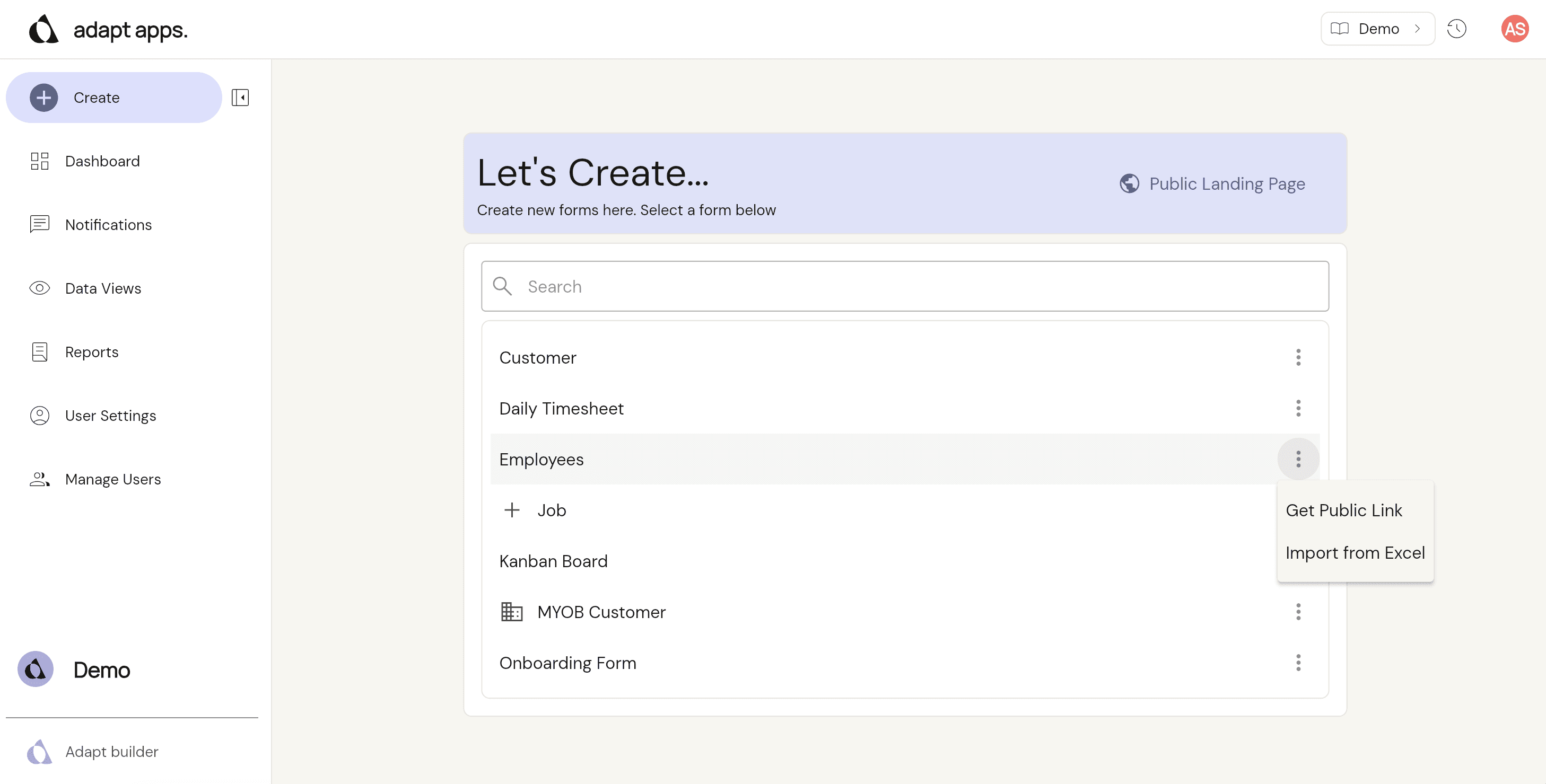
From the dashboard, navigate to the Create section to view all your forms. From there, scroll or search to locate the specific form you wish to share.
Generating the Public Link
Select the three dots icon on the right-hand side of your chosen form to open the options menu. Click Get Public Link to copy the form's public URL directly to your clipboard.
Sharing Your Form
Paste the copied URL into an email, direct message, or on your website. Anyone who receives the link will be able to access, view, and complete your form.
Sharing Public Forms with Default Values
To share a public form with default values already filled in, open the form from the Create screen and enter the information you want preset. Once it is ready, click Share in the top-right corner to generate your link. Anyone who opens this link will see the form pre-filled with your saved responses.

Sharing an Existing Item
To share an existing item, go to the Data Views section, select your Data View, and open an item. Select the Share button in the item's action bar settings. This copies the item's public link to your clipboard and lets you share this item with anyone to view, edit or complete.

Displaying your Public Form Link
Your new public link can be shared as a URL, can be used for a button on a website or used for a QR Code.


