>
>
Adapt Apps Basics: Creating a New Item
>
How to create an item in the Adapt Apps system
Last updated :
3 min
Adding a new item in Adapt Apps is quick and straightforward. In this tutorial, we’ll walk you through the process step-by-step so you can get started in under two minutes.
Creating a New Item
Navigate to the Create Section
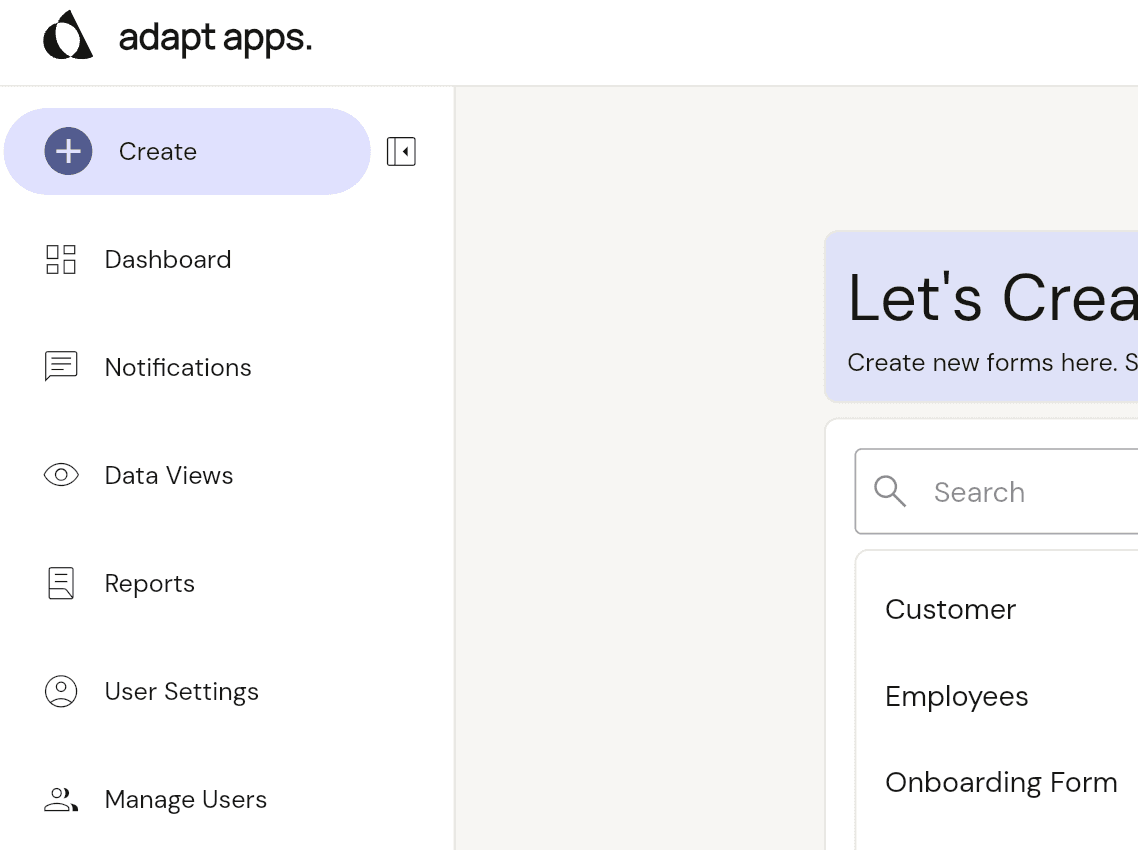
From the Adapt Apps User Console dashboard, click the Create button in the top-left menu.
Choose Your Form
Choose the specific form for the type of item you want to add (e.g. selecting the 'Employees' form to add a new employee).
Complete the Form
Complete all sections of your form. Ensure all information is accurate and correct.
Save the Item
Click the Save button at the bottom of the page. You will see a confirmation once the item is successfully created.
Can't find your form?
If a form isn't showing in the forms list, it may be marked as 'System Form' in the builder settings. This means the form does not show in any form lists and is used internally. Please contact an admin to get this updated.
Library Create & Update History
To view the Create and Update history for your library items, select the timer icon in the top-right corner. This history page displays all form submissions, item updates, submission times and each item's current timeline status.


