>
>
Adapt Apps Basics: How to build your first Form
>
Building your first form in Adapt Apps
Building your first form in Adapt Apps
Last updated :
4 min
Building a new form in Adapt Apps is quick and easy. In this guide, we will show you how to build, design and edit a new form from scratch.
How to build a form
Watch the full walkthrough here, or follow the written steps below.
Navigate to the Form Section
From the builder dashboard, go to the Forms Section. Here you see a list of existing forms and folders.
Create your form
Click 'New Form', give your form a name, update any other form settings and then press Save.
Add fields to your form
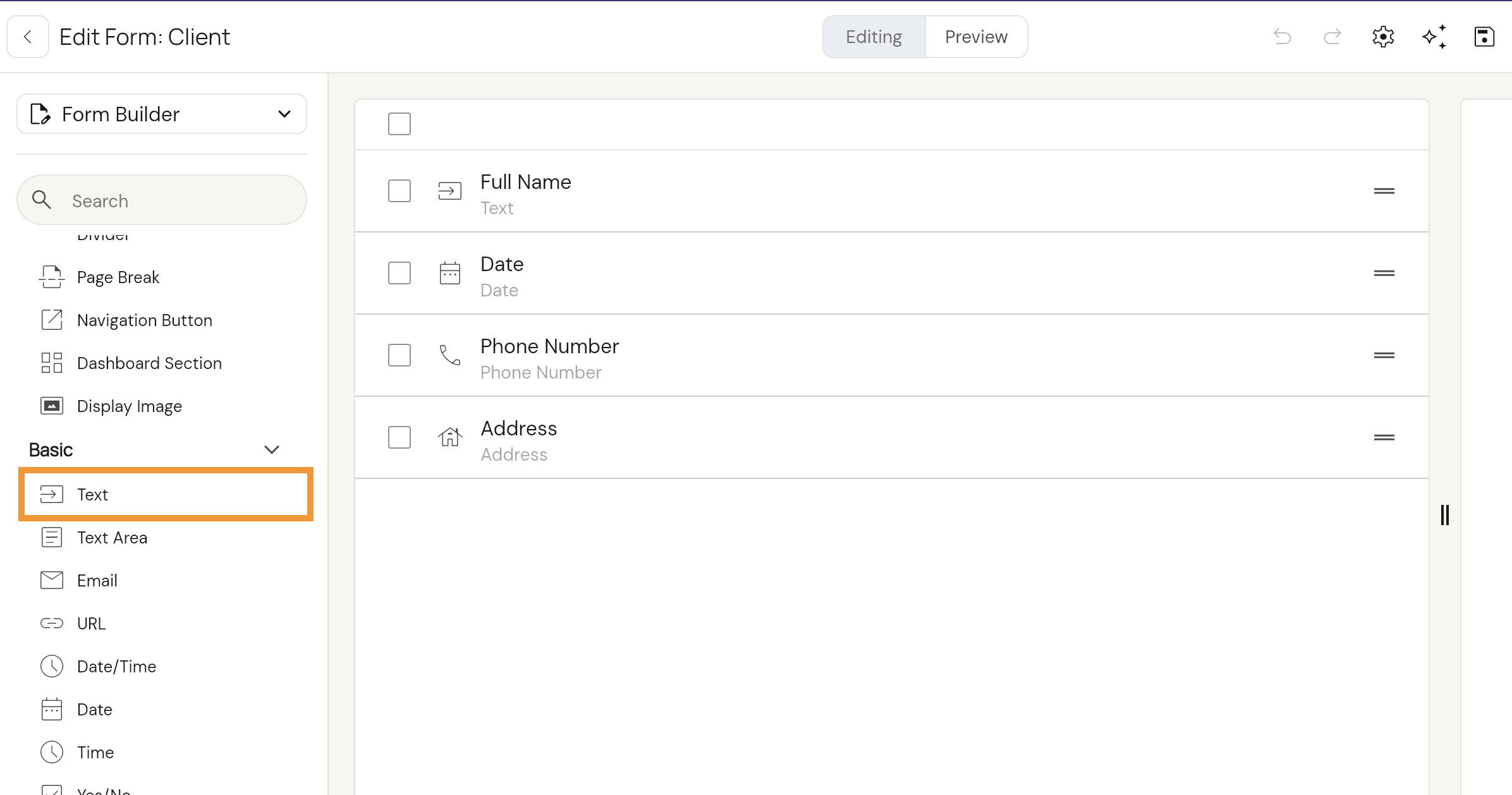
Here you will see the form builder. You can add fields to your form from the Fields Toolbox on the left hand side. Select a field and it will show in the centre console. The centre section shows all the fields currently in your form.
Edit your fields
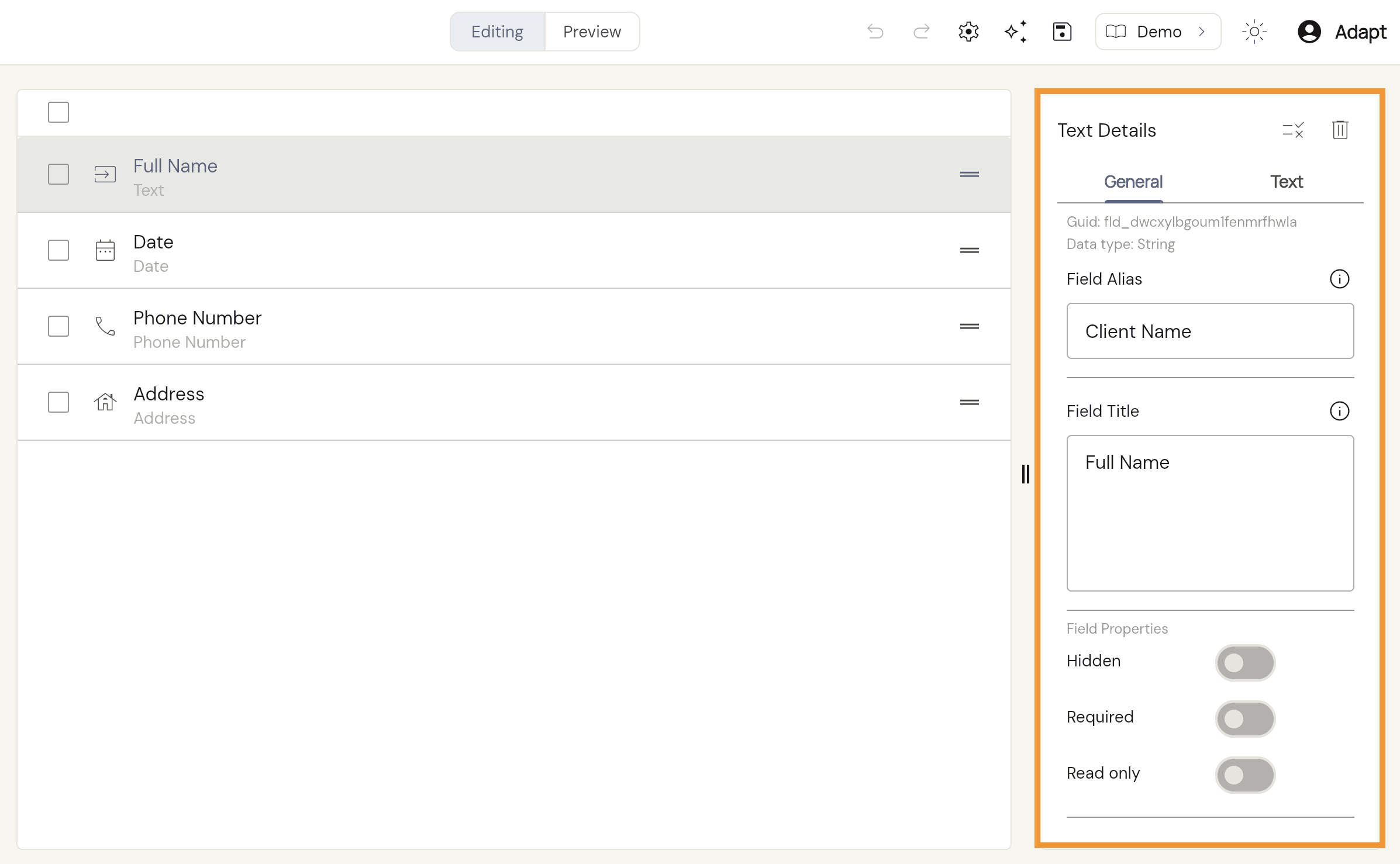
To edit the display and settings of your fields, select a field currently in your form. That fields display properties and additional field settings will show on the right hand side. Here you can update the:
Field Alias - the name used internally when using the field in the builder.
Field Title - the name that is shown on the form.
Field Properties - settings to change the way the field looks and acts (Hidden, Required, Read Only)
Additional Field Settings - additional settings specific to the field type.
Save your form
Once you are happy with your changes, you can press the Save button in the top navigation bar to save your changes.
Settings for your form
If you want to access settings like form visibility, form permissions, go to the Form Settings section by selecting the Settings Button in the top navigation bar.
No items
